

Best iPhone Privacy Settings | iOS 19 & iOS 20 Guide
Your smartphone knows more about you than your closest friends. Best Privacy Settings for iPhone it tracks where you sleep, where you work, what you buy, and what you whisper to your partner across...

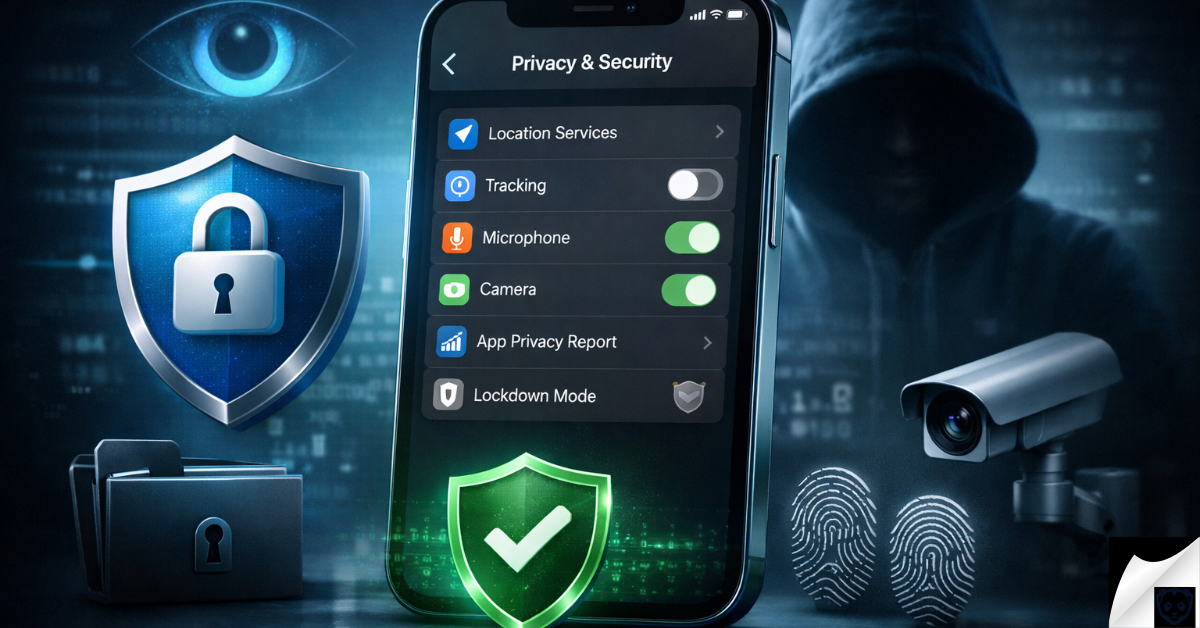
Your smartphone knows more about you than your closest friends. Best Privacy Settings for iPhone it tracks where you sleep, where you work, what you buy, and what you whisper to your partner across the kitchen island. For years, Apple has marketed its devices as the gold standard for user security, but out of the box, an iOS device is still configured to share a massive amount of telemetry and behavioral data. To stop invisible data brokers, aggressive advertisers, and silent location trackers, you need the Best iPhone Privacy Settings configured properly.
Table Of Content
- Essential Best iPhone Privacy Settings Setup
- Signs Your iPhone Privacy is Compromised
- How Data Tracking Actually Happens on iOS
- Core Privacy Configurations: Locking Down App Permissions
- Mastering Location Services
- Managing Microphone and Camera Access
- Restricting Photos Access
- Disabling Local Network Scanning
- Advanced iOS 19 & 20 Privacy Features
- Advanced Data Protection (E2EE for iCloud)
- Stolen Device Protection
- Apple Intelligence and Private Cloud Compute
- Lockdown Mode: Extreme Threat Protection
- Safari & Web Browsing Privacy
- Prevent Cross-Site Tracking and Hide IP
- Advanced Tracking and Fingerprinting Protection
- Requiring Face ID for Private Browsing
- Tools & Methods for Ultimate iPhone Privacy
- Using a Reputable Virtual Private Network (VPN)
- Adopting End-to-End Encrypted Messaging
- Implementing DNS-Level Ad and Tracker Blocking
- Pro Tips and Expert Insights
- Change Your iPhone’s Name
- Disable Lock Screen Access
- Purge Significant Locations
- Revoke Analytics Sharing
- Frequently Asked Questions
- Does Apple really protect my privacy, or is it just marketing?
- Can someone see my iPhone screen without me knowing?
- What is the difference between a VPN and iCloud Private Relay?
- Does turning off location completely break my iPhone?
- How do I know if an app is listening to me right now?
- Is Lockdown Mode necessary for everyday users?
- Can Apple read my iMessages?
- Best Privacy Settings for iPhone Routine
While locking down your iOS 19 and iOS 20 privacy settings is essential for future protection, it won’t help if your device is already compromised. If your battery is draining unusually fast or your phone is acting erratically despite optimized settings, verify your security status by checking the Signs Your iPhone is Hacked | 2026 Update.
With the release of iOS 19 and iOS 20, the landscape of mobile security has completely shifted. Artificial intelligence is deeply integrated into the operating system, biometric security has evolved, and the ways applications attempt to harvest your data have become incredibly sophisticated. You are no longer just protecting your passwords; you are protecting your digital footprint, your voice data, and your real-time location.
This comprehensive guide will strip away the marketing jargon and show you exactly how to lock down your device. We will dive deep into the hidden menus, expose the default configurations that leave you vulnerable, and build a fortress around your personal data. If you want to take back control of your digital life, you are in exactly the right place.
Essential Best iPhone Privacy Settings Setup
To immediately secure your device and apply the best privacy settings for iPhone, you must change three critical configurations. First, go to Settings > Privacy & Security > Tracking and toggle off “Allow Apps to Request to Track.” Second, enable Advanced Data Protection in your iCloud settings to force end-to-end encryption on your backups, photos, and messages. Finally, navigate to Settings > Face ID & Passcode and enable Stolen Device Protection to prevent thieves from accessing your passwords even if they know your PIN code.
Built-in Apple privacy features are excellent against invasive advertisers, but they offer limited protection against zero-click corporate espionage tools. If you are a high-profile target or an executive concerned about advanced mobile surveillance, you must review our How to Remove Spyware from iPhone and Android | Definitive Executive Guide to Neutralizing Mobile Espionage.
Signs Your iPhone Privacy is Compromised
Most privacy invasions happen silently in the background. Applications rarely announce that they are harvesting your location or uploading your contacts to a remote server. However, if you pay close attention to the way your device behaves, you can spot the telltale signs of aggressive data collection or active compromise.
Even if you strictly deny app tracking requests via iOS privacy prompts, data brokers can still identify you based on how you hold your device, your typing speed, and your swipe patterns. Discover how the surveillance industry is secretly bypassing iOS restrictions in Beyond the Cookie: How AI-Powered Behavioral Fingerprinting is Redefining Surveillance in 2026.
- Unexplained Battery Drain: If your battery is rapidly depleting and your device feels hot to the touch when not in use, an app is likely constantly pinging GPS satellites or transmitting data in the background.
- The Persistent Orange or Green Dot: Apple introduced indicator lights at the top of your screen. Green means the camera is active; orange means the microphone is live. If these appear when you are not actively taking a photo or recording audio, an app is eavesdropping.
- Hyper-Specific Advertisements: If you casually mention a niche product in a verbal conversation and immediately see an ad for it on social media, your microphone permissions are likely too loose, or apps are cross-referencing your local network data.
- Strange Calendar Invitations: Unsolicited spam in your Apple Calendar usually means your iCloud email address has been scraped and sold by a data broker, or you accidentally subscribed to a malicious calendar profile on a sketchy website.
- Unexpected Two-Factor Prompts: Receiving a code via text or a prompt on your screen to approve an Apple ID login when you are not actively trying to sign in means someone possesses your password and is trying to breach your account.
How Data Tracking Actually Happens on iOS
To defend against data harvesting, you must first understand the mechanics of how it happens. Data brokers do not rely on a single, massive breach to build a profile on you. Instead, they use a technique called “mosaic theory.” They collect thousands of tiny, seemingly harmless data points and stitch them together to create an uncomfortably accurate digital clone of your life.
Securing your mobile device is a massive step forward, but your iPhone is just one node in your personal network. To build an impenetrable fortress around all your accounts, browsers, and daily digital habits, explore our master guide on How to Protect Your Digital Privacy in 2026 | Ultimate Guide.
Historically, advertisers used the IDFA (Identifier for Advertisers), a unique string of numbers assigned to your specific iPhone. This allowed Facebook, Google, and independent data brokers to track your activity across every app you opened. While Apple’s App Tracking Transparency crippled this specific method, the industry quickly pivoted to more covert techniques.
Today, apps use browser fingerprinting, IP address tracking, and invisible pixel trackers hidden inside emails. When you open a newsletter, a single pixel loads from a remote server, instantly telling the sender exactly what time you opened the email, what device you used, and your approximate location. Furthermore, apps constantly scan your local Wi-Fi network to see what smart TVs, laptops, and smart home devices are connected. By mapping your network, they can confidently link your iPhone to your household, tying your mobile habits to your family’s broader consumer profile.
Core Privacy Configurations: Locking Down App Permissions
The foundation of iPhone security lies in strict permission management. Every time you download a new application, it asks for the keys to various parts of your digital life. Most users blindly tap “Allow” to get past the setup screens. It is time to audit these permissions and revoke access to anything that is not strictly necessary.
Mastering Location Services
Location data is the most valuable commodity on the digital market. Your daily commute, the doctors you visit, and the places you sleep paint a vivid picture of your life. Go to Settings > Privacy & Security > Location Services. You will see a long list of apps. Never leave an app set to “Always.” Change almost everything to “While Using the App” or “Never.”
More importantly, look for the Precise Location toggle within each app’s settings. A navigation app like Google Maps needs your precise location to give you turn-by-turn directions. However, a local news app, a weather app, or a fast-food app only needs your approximate location (a multi-mile radius). Turn Precise Location off for everything except navigation and ride-sharing apps.
Managing Microphone and Camera Access
There is zero reason a flashlight app, a calculator, or a basic mobile game needs access to your microphone or camera. Navigate to Privacy & Security > Microphone. Be ruthless here. Toggle off access for every app that does not fundamentally rely on audio input to function. Repeat this process for the Camera settings.
Remember that social media apps often demand camera access to post photos. If you are highly privacy-conscious, you can revoke camera access from Instagram or TikTok and instead use the native iPhone camera app to take photos, manually uploading them later. This ensures the app cannot silently trigger the camera while you are scrolling the feed.
Restricting Photos Access
Your camera roll contains incredibly sensitive visual data and embedded location metadata (EXIF data) that reveals exactly where a photo was taken. In older versions of iOS, apps asked for “All Photos” access. In iOS 19 and 20, Apple has refined this system significantly. When an app asks for photo access, always choose Limited Access (or “Select Photos”).
This forces the app into a sandbox. It can only see the specific three or four photos you manually select, rather than having free rein to scan your entire library of thousands of images, screenshots of sensitive documents, and family memories.
Disabling Local Network Scanning
This is one of the most overlooked privacy settings. When an app asks to “find and connect to devices on your local network,” it is usually trying to build an advertising profile based on the other hardware in your home. Go to Settings > Privacy & Security > Local Network.
You only need this enabled for apps that actually control local hardware. For example, your Sonos app needs it to play music on your speakers. Your Philips Hue app needs it to control the lights. But Facebook, TikTok, and random mobile games absolutely do not need to scan your home network. Turn them off.
Advanced iOS 19 & 20 Privacy Features
With the integration of systemic artificial intelligence and evolving cryptographic standards, modern iOS versions offer incredibly powerful, yet optional, security features. You must manually enable these tools to benefit from them.
With the integration of advanced HomeKit features in iOS 19 and 20, your iPhone is the central command for your entire household. However, if your local Wi-Fi network is vulnerable, even the most secure iPhone cannot protect your connected devices. Ensure your living space is safe by learning the Signs Your Smart Home Hacking Symptoms | IoT Devices Are Hacked.
Advanced Data Protection (E2EE for iCloud)
By default, Apple holds the encryption keys to your iCloud backups. If law enforcement serves Apple with a warrant, or if a rogue employee accesses the servers, your photos, messages, and notes can be decrypted and read. Advanced Data Protection changes this by implementing true end-to-end encryption (E2EE).
To enable it, go to Settings > [Your Name] > iCloud > Advanced Data Protection. When you turn this on, the encryption keys are stored exclusively on your devices. Apple no longer has the ability to decrypt your data. Warning: If you lose your password and your recovery key, Apple cannot help you recover your data. It will be gone forever. This is the price of true privacy.
Stolen Device Protection
Before this feature, if a thief watched you type in your 6-digit passcode at a bar and then snatched your phone, they could instantly change your Apple ID password, lock you out of your account, and access your bank apps. Stolen Device Protection fixes this massive vulnerability.
Go to Settings > Face ID & Passcode > Stolen Device Protection. When enabled, your iPhone requires successful biometric authentication (Face ID or Touch ID) with no passcode fallback to perform sensitive actions like changing passwords or viewing saved credit cards. Furthermore, if you are away from a familiar location (like your home or office), it enforces a one-hour security delay before you can change your Apple ID password.
Apple Intelligence and Private Cloud Compute
iOS 19 and 20 heavily feature Apple Intelligence. While Apple processes most AI tasks on-device using the Neural Engine, complex requests are sent to Apple’s Private Cloud Compute. Apple guarantees that data sent to this cloud is not stored and is inaccessible to Apple staff.
However, if you want maximum privacy, you can restrict AI features to on-device processing only. Navigate to the Apple Intelligence settings menu and look for the option to disable cloud processing. This will limit the intelligence of Siri and the writing tools, but it ensures your prompts, emails, and voice requests never leave the physical hardware of your phone.
Lockdown Mode: Extreme Threat Protection
Lockdown Mode is designed for journalists, activists, and politicians who might be targeted by state-sponsored mercenary spyware (like NSO Group’s Pegasus). It is an extreme setting that drastically alters how the iPhone works to reduce its attack surface.
When you enable Lockdown Mode (Settings > Privacy & Security > Lockdown Mode), message attachments are blocked, complex web technologies like Just-In-Time (JIT) JavaScript compilation are disabled, and incoming FaceTime calls from unknown numbers are outright rejected. For the average user, this mode is too restrictive for daily use. However, if you are crossing a hostile border or believe you are actively being targeted by a highly funded adversary, it is your strongest line of defense.
Safari & Web Browsing Privacy
Your web browser is the primary window to the internet, and it is also the primary vector for tracking. Safari has excellent built-in privacy tools, but they need to be configured correctly to maximize their effectiveness.
Prevent Cross-Site Tracking and Hide IP
Go to Settings > Safari. Ensure that Prevent Cross-Site Tracking is toggled on. This stops third-party cookies from following you from a news website to a shopping website. Next, look for Hide IP Address and set it to “From Trackers.”
Your IP address is a digital street address that reveals your internet service provider and your general geographic location. By hiding it from known trackers, you prevent marketing companies from tying your web searches directly to your physical household.
Advanced Tracking and Fingerprinting Protection
In the Safari settings, scroll down to Advanced and tap on Advanced Tracking and Fingerprinting Protection. Set this to “All Browsing” (not just Private Browsing). This aggressively strips tracking parameters from the URLs you click.
For example, when you click a link in an email, the URL often has a massive string of random characters at the end (e.g., ?click_id=12345). This tells the destination website exactly who you are and where you came from. Safari’s link tracking protection automatically deletes that garbage data before the page loads, preserving your anonymity without breaking the actual link.
Requiring Face ID for Private Browsing
If you hand your unlocked phone to a friend to show them a photo, you do not want them accidentally swiping over to Safari and seeing your private browsing tabs. Ensure that Require Face ID to Unlock Private Browsing is toggled on in Safari settings. This locks your private tabs behind a biometric wall every time you leave the app.
Tools & Methods for Ultimate iPhone Privacy
Even with the best native settings, you may want to layer additional tools to build a comprehensive security posture. Relying solely on Apple is good, but diversifying your privacy tools is better.
Using a Reputable Virtual Private Network (VPN)
While Apple’s iCloud Private Relay is excellent at hiding your Safari traffic from your internet service provider, it is not a full VPN. It only protects Safari and unencrypted app traffic. To encrypt all data leaving your device—including traffic from third-party apps—you need a zero-log VPN.
A good VPN routes your entire internet connection through an encrypted tunnel to a remote server. This hides your real IP address from every app on your phone and secures your data when you are connected to sketchy public Wi-Fi networks at airports or coffee shops. When selecting a tool, strictly avoid free VPNs; if you are not paying for the product, your data is the product. Look for open-source protocols like WireGuard and independent security audits.
Adopting End-to-End Encrypted Messaging
iMessage is fantastic, but it only defaults to end-to-end encryption if both users have Advanced Data Protection enabled. Furthermore, standard SMS text messages (the green bubbles) are entirely unencrypted and can be intercepted by cell carriers or stingray devices.
To guarantee that your communications remain private, shift your sensitive conversations to dedicated encrypted messengers like Signal. These platforms are built from the ground up for privacy, utilizing open-source encryption protocols that mathematically prevent anyone—even the creators of the app—from reading your messages or listening to your calls.
Implementing DNS-Level Ad and Tracker Blocking
Standard ad blockers only work inside the Safari browser. To stop tracking inside your actual applications (like weather apps or mobile games), you need a system-wide block. You can achieve this by changing your iPhone’s DNS (Domain Name System) settings to a privacy-focused provider.
By using a secure DNS profile, whenever a hidden tracker in an app tries to phone home to an advertising server, the DNS provider acts as a bouncer, recognizes the malicious server, and drops the connection. This not only dramatically improves your privacy but also saves battery life and cellular data by preventing background uploads.
Pro Tips and Expert Insights
Beyond the standard toggles and switches, cybersecurity professionals use several non-obvious strategies to harden their iOS devices against data collection and physical snooping.
Change Your iPhone’s Name
By default, Apple names your phone “[Your First Name]’s iPhone.” This name is broadcasted constantly to the world via Bluetooth and Wi-Fi connection requests. Anyone sitting in a coffee shop with a packet sniffer can see your first name broadcasting in the air.
Go to Settings > General > About > Name. Change it to something generic, like “iPhone,” “Mobile Device,” or even a random string of characters. This simple step stops you from passively leaking your identity in public spaces.
Disable Lock Screen Access
Your iPhone lock screen is a massive vulnerability. By default, anyone who picks up your phone can swipe down to see your Control Center, view your notifications, reply to messages, and ask Siri questions—all without unlocking the device.
Navigate to Settings > Face ID & Passcode. Scroll down to the “Allow Access When Locked” section. Turn off everything you can live without. Disable Notification Center, Control Center, Siri, and Reply with Message. If your phone is locked, it should act like a brick until it sees your face.
Purge Significant Locations
Buried deep within your location settings is a feature that records every single place you visit frequently. Apple uses this for predictive routing, but it is a massive privacy risk if someone gains access to your unlocked phone.
Go to Settings > Privacy & Security > Location Services > System Services > Significant Locations. You will need Face ID to open this menu. Clear the history immediately, and then toggle the feature entirely off. Your phone does not need a permanent database of the exact addresses you visit and the time of day you arrive.
Revoke Analytics Sharing
During the initial iPhone setup, Apple asks if you want to share iPhone and Watch analytics with them to “improve products.” This sends a constant stream of diagnostic data, usage statistics, and sometimes even voice transcripts directly to Apple servers.
Go to Settings > Privacy & Security > Analytics & Improvements. Toggle off “Share iPhone & Watch Analytics,” “Improve Siri & Dictation,” and any other toggle in this menu. You do not need to be an unpaid beta tester for Apple’s engineering teams.
Frequently Asked Questions
Does Apple really protect my privacy, or is it just marketing?
Apple’s business model primarily relies on hardware sales and subscription services, not advertising. Therefore, their financial incentives align much better with user privacy than companies like Google or Meta. However, Apple still collects massive amounts of telemetry data for their own services. They are significantly better than the alternatives, but you must still manually configure your settings to achieve true privacy.
Can someone see my iPhone screen without me knowing?
Unless your device has been compromised by state-sponsored malware (which is incredibly rare for everyday citizens) or a stalkerware profile was physically installed on your unlocked device, it is highly unlikely someone is secretly viewing your screen. Look in Settings > General > VPN & Device Management. If there are no unknown profiles installed there, your screen is generally secure.
What is the difference between a VPN and iCloud Private Relay?
iCloud Private Relay is an Apple service built into iCloud+ that encrypts DNS requests and hides your IP address, but it only works for Safari and unencrypted app traffic. It does not allow you to change your geographic region. A true VPN encrypts 100% of the traffic leaving your device across all apps and allows you to spoof your location to servers around the world.
Does turning off location completely break my iPhone?
No, your iPhone will function perfectly fine as a communication and web-browsing device without location services. However, you will lose the ability to use mapping apps for turn-by-turn navigation, geotag your photos, or use hyper-local weather alerts. The best approach is not to turn it off completely, but to restrict it to only the specific apps that absolutely require it.
How do I know if an app is listening to me right now?
Look at the top of your iPhone screen, near the battery icon or Dynamic Island. If you see an orange dot, your microphone is actively recording. If you swipe down to open the Control Center, it will explicitly tell you which app is currently using the microphone. If it’s an app that shouldn’t be listening, delete it immediately.
Is Lockdown Mode necessary for everyday users?
No. Lockdown Mode disables web features, strips message attachments, and blocks incoming calls from unknown users. It will severely degrade your everyday smartphone experience. It is designed strictly for high-risk individuals like investigative journalists or political dissidents who face advanced, targeted cyberattacks.
Can Apple read my iMessages?
If you have standard iCloud backups enabled, Apple theoretically holds the encryption keys to your backup, meaning they could read your messages if compelled by a court order. To prevent this entirely, you must turn on Advanced Data Protection in your iCloud settings. Once enabled, Apple loses the keys, and your iMessages become truly mathematically unreadable to anyone but you and the recipient.
Best Privacy Settings for iPhone Routine
Securing your device is not a one-time event; it is an ongoing process. As operating systems update and applications evolve their tracking methods, your defense must adapt. However, by taking the time to implement the strategies outlined above, you drastically reduce your digital attack surface. You have locked the doors, closed the blinds, and fortified the walls around your personal data.
To maintain this security, you must make the best privacy settings for iPhone a part of your digital routine. Every time you download a new app, scrutinize its permission requests. Once a month, review your location and microphone settings to ensure no app has silently overstepped its bounds. Keep your device updated to the latest version of iOS 19 or 20 to ensure you have Apple’s latest security patches. By staying vigilant and refusing to trade your privacy for minor conveniences, you can enjoy the incredible power of your smartphone without surrendering your personal life to the data economy.


No Comment! Be the first one.