

How to Stop Apps from Tracking Your Location
You download a new weather app, a local restaurant guide, stop apps from tracking your location or even a simple calculator, and immediately, you are hit with a familiar pop-up: the app wants access...


You download a new weather app, a local restaurant guide, stop apps from tracking your location or even a simple calculator, and immediately, you are hit with a familiar pop-up: the app wants access to your location. Most users hit “Allow” without a second thought, trading their personal privacy for minor convenience. Stop apps from tracking your location but the reality of mobile tracking is much deeper and far more intrusive than a simple GPS ping.
Table Of Content
- How to Stop Apps from Tracking Your Location
- Signs That Apps Are Tracking Your Location in the Background
- How Location Tracking Works: The Technologies Behind It
- 1. Global Positioning System (GPS)
- 2. Wi-Fi MAC Address Mapping
- 3. Bluetooth Beacons
- 4. Cell Tower Triangulation
- Step-by-Step: How to Stop Apps from Tracking Your Location on iPhone (iOS)
- Auditing General Location Permissions
- Managing “While Using” vs. “Always”
- Disabling Precise Location
- Clearing Significant Locations
- How to Stop Apps from Tracking Your Location on Android
- Revoking App-Level Permissions
- Disabling Wi-Fi and Bluetooth Scanning
- Using Approximate Location
- Tools and Methods to Prevent Location Tracking
- Virtual Private Networks (VPNs)
- Privacy-Focused Browsers
- Mock Location Apps (Android Only)
- Expert Insights: Advanced Ways to Stop Apps from Tracking Your Location
- Watch Your Photo Metadata (EXIF Data)
- Beware of “Sign in with…” Buttons
- Audit Your Permissions Monthly
- Frequently Asked Questions
- Does airplane mode stop location tracking completely?
- Can apps track me if my phone is turned off?
- Why does a flashlight or calculator app need my location?
- Does using a VPN stop GPS tracking?
- Can my cellular carrier still track my location?
- Take Control and Stop Apps from Tracking Your Location
Every day, dozens of applications quietly monitor your daily routine. They log where you live, where you work, the doctors you visit, and the stores you frequent. This data is rarely kept local. It is packaged, monetized, and sold to data brokers or advertising networks to build hyper-specific profiles about your life. If you want to reclaim your mobile privacy, you need to learn exactly how to stop apps from tracking your location permanently.
This comprehensive guide will break down the hidden mechanics of mobile tracking. We will explore how your device pinpoints your coordinates, the hidden settings developers use to follow you in the background, and the exact, step-by-step methods to lock down your data on both iOS and Android platforms.
Stopping intrusive apps from tracking your physical movements is a massive victory for your personal security, but it’s only one battle in the ongoing war for your data. To build a comprehensive defense strategy that covers everything from passwords to network security, head over to our master resource: How to Protect Your Digital Privacy in 2026 | Ultimate Guide.
How to Stop Apps from Tracking Your Location
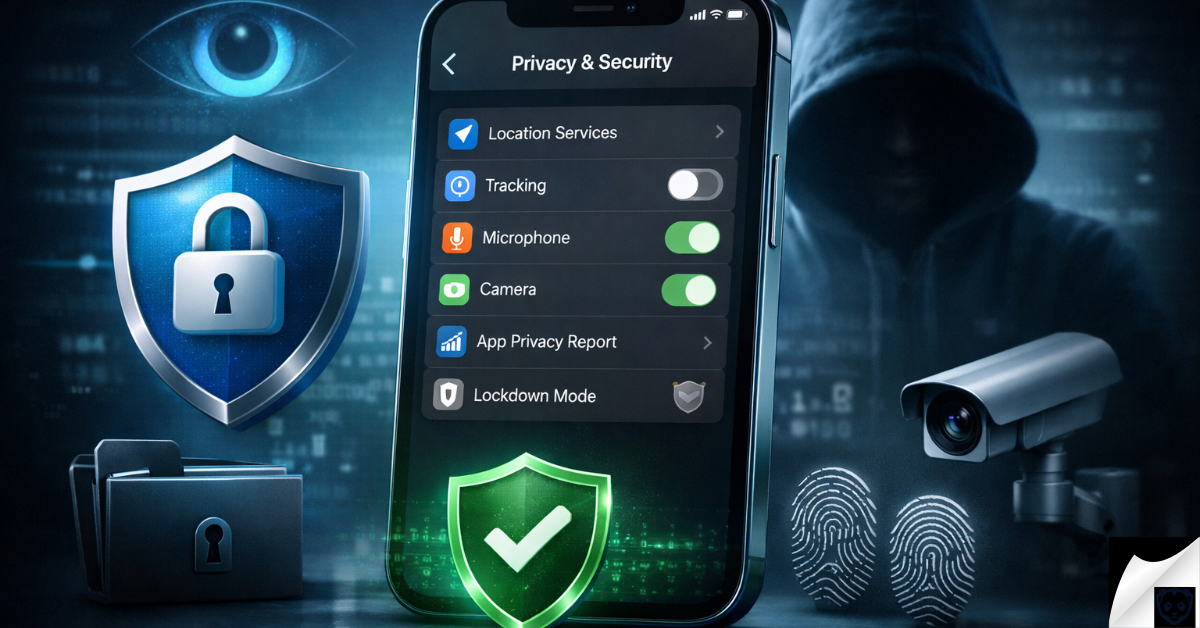
To quickly stop apps from tracking your location, you need to revoke their background permissions at the system level. On iPhone (iOS), go to Settings > Privacy & Security > Location Services, select individual apps, and change the permission to “Never” or “While Using the App.” On Android, go to Settings > Location > App location permissions, tap on the apps you want to restrict, and select “Don’t allow” or “Allow only while using the app.” For maximum privacy, you should also disable Wi-Fi and Bluetooth scanning in your device’s advanced location settings.
Signs That Apps Are Tracking Your Location in the Background
Apps are designed to operate silently, but location tracking is a resource-heavy process. Even the most well-coded applications leave a footprint when they actively ping your device’s hardware. If you know what to look for, you can easily spot the symptoms of unauthorized background tracking.
- Unexplained Battery Drain: GPS hardware requires significant power to connect with satellites. If your battery is draining rapidly while your phone is in your pocket, a background app is likely polling your location constantly.
- Persistent Location Icons: Both iOS and Android use status bar icons (usually an arrow or a teardrop pin) to indicate active location usage. If this icon remains visible when you are on your home screen, an app is tracking you.
- Hyper-Targeted Local Advertisements: If you walk past a specific coffee shop or retail store and immediately see an ad for it on social media, your location data was just sold in real-time through a process known as geofencing.
- High Background Data Usage: Tracking your location is useless to an app developer unless that data is transmitted back to their servers. Check your cellular data settings to see which offline apps are mysteriously consuming high amounts of data.
How Location Tracking Works: The Technologies Behind It
To effectively stop apps from tracking your location, you must first understand that “location” is not just GPS. Modern smartphones use a combination of advanced sensors and network signals to pinpoint you with terrifying accuracy, even when you are deep indoors.
1. Global Positioning System (GPS)
GPS is the most widely known tracking method. Your phone communicates with a network of satellites orbiting the Earth to triangulate your exact coordinates. While highly accurate outdoors, GPS struggles inside buildings and consumes a massive amount of battery life. This is why apps rarely rely on GPS alone.
Securing your real-world coordinates is crucial, but what about your digital identity? Even if your GPS is off, your IP address and browsing habits can still be used to build a profile on you. If you’re ready to mask your online activity and stop web trackers in their tracks, read our step-by-step breakdown on How to Stay Anonymous Online | A Beginner’s Guide.
2. Wi-Fi MAC Address Mapping
Even if you are not connected to a Wi-Fi network, your phone is constantly scanning for nearby routers. Companies like Google and Apple have mapped the physical locations of millions of Wi-Fi routers globally. By seeing which routers your phone can detect, an app can pinpoint your location inside a building with extreme precision, entirely bypassing the need for GPS.
Shutting off your GPS access is a massive victory for your physical privacy, but location is only one piece of the puzzle. Even without knowing where you are, corporations can still figure out exactly who you are by monitoring how you interact with your device. Uncover the alarming reality of how your digital habits are weaponized against you in Beyond the Cookie: How AI-Powered Behavioral Fingerprinting is Redefining Surveillance in 2026.
3. Bluetooth Beacons
Retail stores, airports, and shopping malls use Bluetooth Low Energy (BLE) beacons. These small hardware devices broadcast a signal that your phone’s apps listen for. When you walk past a beacon in a shoe aisle, the app notes your exact indoor location and dwells time, feeding this data directly to marketers.
4. Cell Tower Triangulation
Your phone must maintain a connection to cellular towers to receive calls. By measuring the signal strength between your device and at least three nearby cell towers, network providers and sophisticated apps can calculate your general location. While less accurate than GPS, it works seamlessly in the background without draining your battery.
Step-by-Step: How to Stop Apps from Tracking Your Location on iPhone (iOS)
Apple has built robust privacy controls into iOS, but many of the deepest tracking settings are buried under layers of menus. To secure an iPhone, you must systematically audit how each application interacts with the Location Services module.
Auditing General Location Permissions
Your first step is to review the direct permissions you have granted to downloaded apps. You do not need to turn off Location Services entirely—doing so breaks essential tools like Maps—but you must restrict unnecessary access.
- Open the Settings app on your iPhone.
- Scroll down and tap on Privacy & Security.
- Tap on Location Services at the very top.
- Scroll through the list of installed apps. Tap on any app that does not strictly need your location (like a calculator, a simple game, or a flashlight app).
- Change the permission to Never.
Managing “While Using” vs. “Always”
For apps that actually need your location (like ride-sharing or delivery apps), you should never grant them “Always” access. “Always” means the app tracks your movements 24/7, building a map of your life. Instead, set these apps to While Using the App. This ensures they can only access your GPS when the app is visibly open on your screen.
Disabling Precise Location
One of the best modern iOS features is the ability to spoof your accuracy. A weather app needs to know what city you are in; it does not need to know your exact street address. When you click on an app in the Location Services menu, toggle off the switch for Precise Location. This feeds the app a generalized, blurred location radius instead of your exact coordinates.
Clearing Significant Locations
Your iPhone inherently tracks the places you visit most often to provide predictive traffic routing. This is called Significant Locations. While Apple states this is encrypted, it is best practice to clear it.
- In the Location Services menu, scroll to the very bottom and tap System Services.
- Scroll down and select Significant Locations (Face ID/Touch ID required).
- Scroll to the bottom of this menu and tap Clear History.
- Toggle the switch at the top to disable the feature entirely.
How to Stop Apps from Tracking Your Location on Android
Android devices offer incredibly granular control over privacy, but the open nature of the ecosystem means some apps are aggressive in their tracking attempts. Because Android operating systems can vary slightly between manufacturers (like Samsung, Google Pixel, or Xiaomi), the terminology might differ slightly, but the core path remains the same.
If you’re an Apple user, restricting app location access is just the tip of the iceberg when it comes to system security. The latest iOS updates come packed with powerful, under-the-radar features designed to lock out third-party snoopers. To ensure your entire device is optimized for maximum security, discover the Best Privacy Settings for iPhone | OS 19/20.
Revoking App-Level Permissions
Similar to iOS, Android categorizes location access into different tiers. You need to ensure that no third-party application has unrestricted background access to your device’s sensors.
- Open the Settings app on your Android device.
- Scroll down and tap on Location.
- Tap on App location permissions (or “App permissions” depending on your device).
- You will see apps categorized by their access levels: Allowed all the time, Allowed only while in use, and Not allowed.
- Tap on any app under the “Allowed all the time” section that doesn’t need to be there.
- Change its permission to Don’t allow or Ask every time.
Disabling Wi-Fi and Bluetooth Scanning
This is the most critical and frequently missed step for Android users. Even if you turn off your main Wi-Fi and Bluetooth toggles, Android secretly leaves the scanning protocols active in the background to help apps determine your location. You must turn this off manually.
- Go back to the main Location settings menu.
- Tap on Location services (sometimes listed as “Advanced”).
- Find the options for Wi-Fi scanning and Bluetooth scanning.
- Toggle both of these switches to the Off position.
Using Approximate Location
Modern versions of Android (Android 12 and above) allow you to restrict apps to an approximate location. When an app requests your location, you will see a visual graphic showing “Precise” and “Approximate.” Always select Approximate for apps that do not require turn-by-turn navigation. If you need to change this retroactively, tap the app in the location permissions menu and toggle off “Use precise location.”
Tools and Methods to Prevent Location Tracking
Adjusting system settings is the first line of defense, but true cybersecurity requires a layered approach. If you are serious about your digital privacy, you should deploy external tools and habits to obscure your physical presence from data brokers.
Virtual Private Networks (VPNs)
A VPN routes your internet traffic through an encrypted server in a different location. While a VPN does not spoof your device’s physical GPS coordinates, it prevents apps and websites from tracking your location via your IP address. If you use a browser without a VPN, the website instantly knows your city and internet service provider. A premium, no-logs VPN masks this data completely.
Privacy-Focused Browsers
Many users access services through mobile web browsers rather than dedicated apps. Standard browsers often leak location data through HTML5 geolocation APIs. Switch to a privacy-first browser like Brave or DuckDuckGo. These browsers block background tracking scripts, fingerprinting, and automatic geolocation requests by default.
Mock Location Apps (Android Only)
Android’s developer settings allow you to actively spoof your GPS coordinates using third-party applications. By enabling “Mock Locations” in Developer Options, you can use an app to broadcast fake GPS data to the rest of your phone. If a malicious app tries to read your coordinates, it will simply see the fake location you have chosen, such as the middle of the ocean or a random city across the globe.
Expert Insights: Advanced Ways to Stop Apps from Tracking Your Location
Basic permission management is enough for the average user, but maintaining high-level security requires understanding the subtle ways your data leaks. Here are advanced insights that go beyond standard toggle switches.
Watch Your Photo Metadata (EXIF Data)
When you take a photo, your phone embeds invisible metadata into the image file, including the exact GPS coordinates of where the photo was taken. If you grant a social media app permission to access your photo gallery, that app can extract the location data from your entire camera roll, mapping your past movements without ever needing active GPS access. To stop this, turn off location tagging in your Camera app settings, or strip EXIF data before uploading photos.
Beware of “Sign in with…” Buttons
Using single sign-on (SSO) options like “Sign in with Facebook” or “Sign in with Google” creates a direct data bridge between the app and the tech giant. Even if you deny the new app location access, it can often pull your general location and demographic data directly from your linked social media profile. Always create standalone accounts using a masked email address.
Audit Your Permissions Monthly
App updates frequently reset privacy settings or introduce new “features” that require broader permissions. A setting you locked down in January might silently revert to “Allow Always” after a major software update in March. Set a recurring calendar reminder to audit your location permissions for five minutes at the start of every month.
Frequently Asked Questions
Does airplane mode stop location tracking completely?
No, airplane mode does not completely stop location tracking. While it disables cellular and Wi-Fi transmission, your device’s GPS receiver is passive. It can still receive satellite signals and log your coordinates locally. Once you turn airplane mode off, apps can upload that backlog of location data to their servers.
Can apps track me if my phone is turned off?
If your phone is completely powered down (not just locked or asleep), third-party apps cannot track your location. The operating system is inactive, meaning software cannot execute. However, some modern devices have ultra-low-power tracking chips (like Apple’s Find My network) that allow the device itself to be located by the manufacturer even when powered off.
Why does a flashlight or calculator app need my location?
They don’t. Simple utility apps that request location access are almost always doing so maliciously. Their primary business model is not providing a utility, but rather harvesting and selling your background data to ad networks. You should immediately delete any utility app that demands location access.
Does using a VPN stop GPS tracking?
No. A VPN only changes your IP address, which masks your location on the network level. It has absolutely no effect on your device’s internal GPS chip, Wi-Fi scanning, or Bluetooth beacon detection. Apps with GPS permissions will still know exactly where you are, regardless of your VPN connection.
Can my cellular carrier still track my location?
Yes. As long as your phone is connected to a cellular network, your provider can triangulate your general location based on the cell towers your device is communicating with. You cannot prevent this without removing the SIM card or turning off the phone, but third-party apps cannot access this carrier-level data directly.
Take Control and Stop Apps from Tracking Your Location
Securing your digital footprint is not a one-time setup; it is an ongoing process of digital hygiene. Developers will continually find new ways to extract valuable data, but by understanding the underlying technology, you maintain the upper hand. You must be ruthless with your permissions. If an app does not need to know where you are standing to function, deny it access immediately.
By restricting background permissions, utilizing approximate location features, and turning off invasive network scanning, you can successfully stop apps from tracking your location. Take ten minutes right now to open your device settings, audit your permissions, and permanently shut the door on background surveillance.

No Comment! Be the first one.