

10 Signs Your Laptop Is Infected with Malware
You sit down to work, open your laptop, and something feels slightly off. It is not a red skull flashing on your screen or a ransom note demanding cryptocurrency. Instead, the machine is just a...

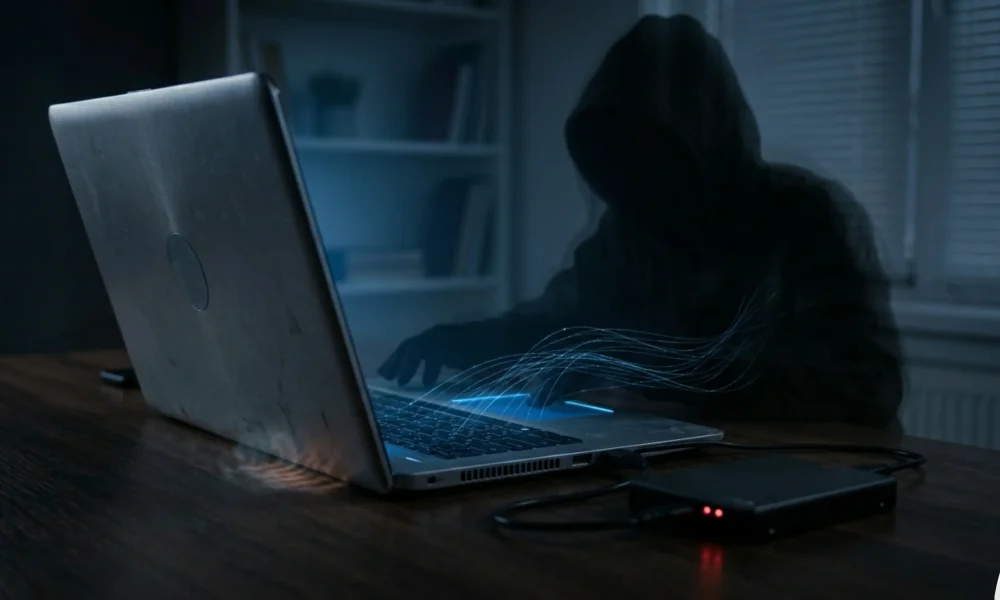
You sit down to work, open your laptop, and something feels slightly off. It is not a red skull flashing on your screen or a ransom note demanding cryptocurrency. Instead, the machine is just a fraction slower, the battery dies a little faster, and the fan runs a bit louder. These minor annoyances are often the first hidden symptoms of malware on your laptop.
Table Of Content
- What Are the Hidden Symptoms of Malware on Your Laptop?
- The Silent Threat: Why Modern Malware Hides
- 10 Hidden Symptoms of Malware on Your Laptop
- 1. Severe and Unexplained Battery Drain
- 2. The Fan Sounds Like a Jet Engine at Rest
- 3. Mysterious Network Activity and Data Usage
- 4. Subtle Changes in Browser Behavior
- 5. Disabled or “Glitchy” Security Tools
- 6. Unfamiliar Background Processes
- 7. Missing, Encrypted, or Relocated Files
- 8. Spontaneous Restarts or Shutdown Prevention
- 9. Webcam and Microphone Indicator Anomalies
- 10. Weird “Ghost” Accounts or Administrator Changes
- How It Happens: The Root Causes of Laptop Infections
- Step-by-Step Solution: How to Remove Hidden Malware
- Essential Tools for Malware Detection and Removal
- Pro Tips and Expert Insights for Long-Term Security
- Frequently Asked Questions (FAQ)
- Can a laptop get malware without clicking anything?
- Does a factory reset completely remove all hidden malware?
- Why didn’t my antivirus catch the hidden malware?
- Can malware physically damage my laptop hardware?
- How do I check for hidden background network usage?
- Is it safe to backup my files if I suspect my laptop has malware?
- Conclusion
Modern cybercriminals no longer want to destroy your machine. Destruction is loud, and loud gets caught. Today’s threat actors want persistence. They want to quietly harvest your credentials, use your computing power for cryptojacking, or silently monitor your keystrokes while you log into your bank account. If you wait for an obvious virus alert, you are already too late.
This comprehensive guide will break down the subtle indicators of compromise that slip past basic antivirus software. You will learn exactly what to look for, how these invisible threats infiltrate your system, and the exact steps to eradicate them before your personal data is compromised.
In many cases, sophisticated malware doesn’t infect your laptop on its own; hackers convince you to download it. Today, scammers are moving away from easily detectable phishing emails and are using hyper-realistic artificial intelligence to pose as IT support or government officials over the phone to force you into granting remote access. Learn how to spot these manipulative tactics in How to AI Voice Scam Detection | Deepfake Audio.
What Are the Hidden Symptoms of Malware on Your Laptop?
The most common hidden symptoms of malware on your laptop include unexplained battery drain, excessive fan noise when the computer is idle, mysterious background network activity, and security tools that silently disable themselves. You might also notice subtle browser redirects, unfamiliar background processes consuming CPU power, or slight delays during the startup and shutdown phases. Identifying these signs early requires monitoring your system’s resource usage rather than waiting for an explicit antivirus warning.
The Silent Threat: Why Modern Malware Hides
In the early days of the internet, malware was designed to be obnoxious. It crashed systems, deleted files, and displayed annoying pop-ups. The motive was often just digital vandalism. That era is over. Cybersecurity is now a multi-billion dollar illicit industry, and stealth is the most valuable commodity a hacker possesses.
When malware remains undetected, attackers can maintain a “foothold” in your system. This allows them to execute Advanced Persistent Threats (APTs). They can slowly siphon sensitive documents, capture authentication tokens, or pivot from your laptop into your employer’s corporate network.
In many cases, laptops are infected because hackers convince the owner to install the malware themselves. Scammers are now using artificial intelligence to perfectly mimic the voices of IT support staff or government officials over the phone to force you into downloading remote access trojans. Don’t fall for these manipulative tactics; read Is That Really Them? How to Detect Deepfake Audio Scams (2026).
To achieve this, developers use techniques like obfuscation, fileless execution, and masquerading—where malicious code hides inside legitimate operating system processes. Because the code is designed to look normal, standard behavioral analysis tools often ignore it. That is why human observation is your strongest secondary line of defense.
10 Hidden Symptoms of Malware on Your Laptop
Below is a detailed breakdown of the subtle red flags indicating your machine has been compromised. If you notice two or more of these occurring simultaneously, you should assume a breach has occurred.
1. Severe and Unexplained Battery Drain
Laptop batteries degrade over time; that is a hardware reality. However, if your battery life drops from six hours to two hours overnight, it is rarely a hardware failure. Malicious software runs continuously in the background. Whether it is logging keystrokes, scanning your hard drive for sensitive files, or acting as a node in a botnet, it requires energy to operate.
A malware infection on your laptop doesn’t just put your personal files at risk; it threatens every single device connected to your Wi-Fi router. Hackers often use a compromised computer to quietly scan your local network and exploit poorly secured IoT devices, from smart TVs to baby monitors. Protect your entire household ecosystem by learning the Signs Your Smart Home Hacking Symptoms | IoT Devices Are Hacked.
What to look for: Check your operating system’s battery usage statistics. If you see an unknown application consuming a massive percentage of your power, or if the system itself is draining rapidly while completely idle, a hidden script is likely forcing your processor to stay awake.
2. The Fan Sounds Like a Jet Engine at Rest
Your laptop fan is designed to cool down the CPU and GPU during intense operations like video rendering, compiling code, or gaming. If you are staring at a blank desktop and your fan is spinning at maximum RPM, your hardware is under stress.
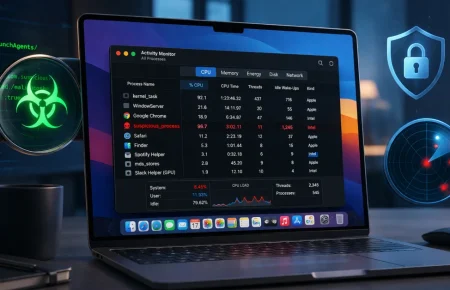
If your laptop’s fans are constantly spinning or the system feels unusually sluggish, a hidden cryptominer or spyware might be secretly consuming your system resources. If you are using an Apple computer, you don’t need expensive third-party software to investigate these performance drops. Take control of your system today by following Check Malware Activity Monitor Mac | 5 Quick Steps to Stop Threats.
What to look for: This is the hallmark symptom of cryptojacking. Hackers use your laptop’s processing power to mine cryptocurrency for their own wallets. Because mining requires massive computational effort, your laptop will generate excess heat, triggering the fans. If your laptop is physically hot to the touch while you are just reading a document, investigate immediately.
3. Mysterious Network Activity and Data Usage
Malware cannot operate in a vacuum. To be profitable, it must communicate with an external Command and Control (C2) server. It needs to receive new instructions and exfiltrate your stolen data. This creates a subtle but detectable footprint on your network traffic.
What to look for: Pay attention to your data consumption. If your internet service provider reports massive data spikes, or if the Wi-Fi indicator on your laptop is constantly flashing while you are offline, data is moving without your permission. You may also notice your internet speed dropping significantly as the malware consumes your bandwidth.
4. Subtle Changes in Browser Behavior
Browser hijackers have evolved. They no longer plaster your screen with toolbars. Instead, they make microscopic changes to redirect your traffic through affiliate links or credential-harvesting proxies.
What to look for: Notice if your default search engine changes, even if it changes to something that looks legitimate. Watch for a slight delay when typing a URL, where the address bar rapidly flashes through several different web addresses before landing on your destination. Also, check your browser extensions for tools that have installed themselves without your explicit consent.
5. Disabled or “Glitchy” Security Tools
The first action sophisticated malware takes upon executing is neutralizing your defenses. It will attempt to turn off your firewall, disable real-time scanning, or corrupt the update mechanisms of your antivirus software.
While securing your laptop against background malware is critical, cybercriminals know that executives and modern professionals keep their most sensitive communications on their smartphones. If you suspect your mobile device has been targeted with the same level of sophistication as a desktop infection, you need specialized countermeasures. Discover the exact eradication protocols in How to Remove Spyware from iPhone and Android | Definitive Executive Guide to Neutralizing Mobile Espionage.
What to look for: If you try to open your system security dashboard and the window immediately closes, or if the toggle switch for your firewall is greyed out and unclickable, your system has been hijacked. Furthermore, if your antivirus software suddenly stops receiving daily signature updates, it is likely being blocked at the network level by malicious code.
6. Unfamiliar Background Processes
Threat actors know that tech-savvy users will check their Task Manager (Windows) or Activity Monitor (Mac). To avoid detection, malware developers name their malicious files after critical system processes.
What to look for: Look for processes with slight misspellings, such as svch0st.exe instead of svchost.exe. Another massive red flag is a system process running from the wrong directory. For example, a core Windows process should run from the System32 folder. If you see it running from your temporary downloads folder, it is malware masquerading as a legitimate file.
7. Missing, Encrypted, or Relocated Files
Before ransomware announces itself with a demand for payment, it spends days or weeks silently encrypting your files in the background. It targets old archives and deep folders first to avoid immediate detection.
What to look for: You might notice file icons turning blank, or file extensions changing unexpectedly (e.g., your document taxes.pdf becomes taxes.pdf.lock). You may also find that certain folders claim you no longer have “Administrator permissions” to view them, despite being the owner of the device.
8. Spontaneous Restarts or Shutdown Prevention
To embed itself deeply into your operating system kernel, malware often requires a system reboot. Conversely, some malware relies on running strictly in your system’s temporary memory (RAM) and will prevent your laptop from shutting down to stay alive.
What to look for: If your laptop reboots entirely on its own while you are actively typing, or if it hangs indefinitely on the “Shutting down” screen until the battery dies, a malicious script is likely interfering with the power state protocols of your operating system.
9. Webcam and Microphone Indicator Anomalies
Spyware is designed for corporate espionage, blackmail, and stalking. It seeks out your camera and microphone to record ambient conversations or capture unauthorized video.
What to look for: The most obvious sign is the tiny LED indicator light next to your webcam illuminating when you are not using a video conferencing application. However, advanced spyware can disable this light. A secondary symptom is your laptop throwing an error message that “the camera is already in use by another application” when you try to open Zoom or Skype.
10. Weird “Ghost” Accounts or Administrator Changes
To maintain long-term access, hackers will create secondary user profiles on your machine. This ensures that even if you find and delete their initial entry point, they have a secret backdoor account to log back into.
What to look for: Check your system’s user account settings. If you see a new profile named “Guest,” “Admin2,” or just a string of random characters, you have a severe breach. Additionally, if your own primary account suddenly loses administrative privileges, the attacker has successfully executed a privilege escalation attack and taken complete ownership of your device.
Malware doesn’t only target laptops—mobile devices can also show signs of compromise, especially if they are connected to the same accounts or networks. If you’re using an iPhone, it’s important to recognize the warning signs early. See this guide on signs your iPhone is hacked.
How It Happens: The Root Causes of Laptop Infections
Understanding the hidden symptoms of malware on your laptop is only half the battle; you must also understand the vectors of attack. Malware does not spontaneously generate. It requires a delivery mechanism.
- Spear-Phishing Campaigns: Unlike bulk spam, spear-phishing targets you directly. Attackers use context—like an upcoming flight or a recent purchase—to trick you into downloading an infected PDF or Word document containing malicious macros.
- Drive-by Downloads: You do not always have to click a download button to get infected. Simply visiting a compromised website can allow hackers to exploit vulnerabilities in your browser, dropping a payload onto your system instantly.
- Software Bundling and Malvertising: When downloading free software, malicious code is often hidden deep within the installer’s terms of service. Alternatively, malicious advertisements on legitimate websites can redirect your browser to exploit kits.
- Compromised USB Drives: Physical vectors still exist. Plugging in an untrusted USB drive can trigger an automatic execution script, bypassing network security entirely.
Step-by-Step Solution: How to Remove Hidden Malware
If you have identified multiple symptoms from the list above, do not panic. Acting hastily can alert the malware to your awareness, prompting it to destroy data before you can remove it. Follow this precise incident response protocol.
One of the most common consequences of malware is stolen data, including email credentials that may later appear in data breaches. If you suspect your information has been exposed, learn how to verify it in this guide on how to check if your email was leaked.
Step 1: Isolate the Machine from the Network
The absolute first step is to cut off the attacker’s connection. Turn off your Wi-Fi router, unplug your Ethernet cable, and disable Bluetooth. This prevents the malware from exfiltrating more data or receiving a self-destruct command.
Step 2: Boot into Safe Mode
Reboot your laptop and enter Safe Mode (Safe Mode with Networking disabled). Safe Mode loads only the bare minimum drivers and core operating system files. This prevents third-party malicious scripts from launching at startup, allowing you to isolate the files.
Step 3: Clear Temporary Storage and Caches
Many hidden payloads reside in temporary folders. Use your system’s built-in disk cleanup tools to empty the recycle bin, clear browser caches, and delete temporary OS files. This simple step can sometimes delete the executable file before you even scan for it.
Step 4: Execute an Offline Deep Scan
Use a dedicated, on-demand malware scanner (not your daily antivirus). Run a full, deep system scan. This process can take several hours as it inspects every single registry key, boot sector, and compressed file on your hard drive.
Step 5: Review and Remediate
Once the scan is complete, review the quarantine list. Do not blindly click “delete all” if you are unsure, as false positives can sometimes flag critical system files. Quarantine the confirmed malicious files, then reboot your computer normally.
Step 6: Reset Passwords and Monitor
After the machine is clean, assume all your passwords have been compromised. Using a different, secure device, change the passwords to your email, banking, and password managers. Enable Two-Factor Authentication (2FA) across all critical accounts.
Essential Tools for Malware Detection and Removal
To effectively hunt for stealthy threats, you need to look beyond basic consumer antivirus software. A layered defense strategy utilizes different types of security architecture.
- On-Demand Scanners: These are secondary tools designed specifically to hunt down deep-root infections that your primary antivirus missed. They do not run in the background; you trigger them manually for intense forensic sweeps.
- Endpoint Detection and Response (EDR): EDR focuses on behavioral analysis rather than signature matching. Instead of asking “Is this file a known virus?”, EDR asks “Is this file behaving like a virus?” This is crucial for stopping zero-day, fileless malware.
- Network Traffic Monitors: Tools that log outbound and inbound traffic are essential for spotting C2 server communications. If your laptop is secretly talking to an IP address in a foreign country at 3:00 AM, a network monitor will catch it.
- Process Explorers: Advanced task managers that allow you to verify the digital signatures of every running application. If a process claims to be from Microsoft but lacks a verified signature, the tool will flag it immediately.
Pro Tips and Expert Insights for Long-Term Security
Removing malware is exhausting. Preventing it requires a fundamental shift in how you interact with your operating system. Adopt these advanced security postures to harden your laptop against future attacks.
Implement the Principle of Least Privilege (PoLP): Do not use your computer on an Administrator account for daily tasks. Create a standard user profile for web browsing, email, and word processing. If malware executes on a standard account, it lacks the administrative rights needed to bury itself into the system registry.
Embrace a Zero-Trust Mindset: Never assume an email attachment is safe just because it came from a known contact. Email addresses are spoofed and compromised daily. If a colleague unexpectedly sends you an invoice or a link, verify it through a secondary channel like a phone call or text message before clicking.
Keep Hardware Firmware Updated: Most users update their software, but ignore their hardware. Hackers actively target outdated BIOS/UEFI firmware and router firmware. Keep your motherboard and network hardware patched to close foundational vulnerabilities.
Frequently Asked Questions (FAQ)
Can a laptop get malware without clicking anything?
Yes. This is known as a zero-click exploit or a drive-by download. By simply visiting a compromised website or receiving a specifically crafted message, vulnerabilities in your browser or operating system can be exploited to silently install malware without any user interaction.
Does a factory reset completely remove all hidden malware?
In most consumer cases, a factory reset (wiping the hard drive and reinstalling the OS) will remove the infection. However, highly sophisticated malware, such as bootkits or rootkits, can infect the motherboard’s UEFI/BIOS firmware, allowing it to survive a complete hard drive wipe.
Why didn’t my antivirus catch the hidden malware?
Traditional antivirus relies heavily on signature-based detection, meaning it compares files against a known database of bad code. If the malware is brand new (a zero-day threat), or if it uses fileless techniques to hide in your system’s RAM, traditional scanners will not see it.
Can malware physically damage my laptop hardware?
Direct physical damage is rare, but secondary damage is possible. For example, cryptojacking malware forces your CPU and GPU to run at maximum capacity for extended periods. This generates excessive heat, which can prematurely degrade your battery, fry your thermal paste, and shorten the lifespan of your components.
How do I check for hidden background network usage?
You can use built-in tools like Resource Monitor (Windows) or Activity Monitor (Mac) and navigate to the Network tab. Look for unfamiliar applications sending large amounts of data (Bytes Sent). For deeper analysis, third-party packet sniffers can reveal exactly where your data is going.
Is it safe to backup my files if I suspect my laptop has malware?
You must be extremely careful. If you backup infected files to an external drive or cloud storage, you will simply re-infect your machine when you restore them. Only backup verified personal documents (like plain text or photos), and avoid backing up executables, software installers, or system settings.
If you suspect you’ve been hacked, check out “How to Know If You’ve Been Hacked“.
Conclusion
Detecting the hidden symptoms of malware on your laptop requires vigilance and a basic understanding of your machine’s baseline behavior. When you know how your computer normally sounds, operates, and consumes power, the subtle anomalies created by stealthy cyber threats become glaringly obvious.
Do not wait for a catastrophic data breach to take your digital security seriously. If your fan is spinning wildly, your battery is draining rapidly, and your browser feels sluggish, trust your instincts. Isolate your machine, run a comprehensive offline scan, and take immediate control of your digital environment before the attackers do.



No Comment! Be the first one.