

Check Malware Activity Monitor Mac | 5 Quick Steps to Stop Threats
To check malware activity monitor mac, you must first take a deep breath and step back from the panic button. If you are reading this, chances are you just noticed something alarming—perhaps your...


To check malware activity monitor mac, you must first take a deep breath and step back from the panic button. If you are reading this, chances are you just noticed something alarming—perhaps your MacBook fan is spinning like a jet engine, your battery is draining at an impossible rate, or, most terrifying of all, the tiny green camera indicator light flashed on unexpectedly. It is entirely human to immediately assume that a sophisticated hacker is watching your every move. However, before you jump to worst-case scenarios, we need to look at the facts and rule out the innocent explanations.
Table Of Content
- How to Check Malware Activity Monitor Mac
- Common Signs and Symptoms of a macOS Infection
- How Your Mac Gets Compromised
- Trojan Horses and Bundled Software
- Fake System Updates and Flash Player Warnings
- Malicious Email Attachments and Phishing
- Drive-by Downloads and Malvertising
- Using Activity Monitor to Hunt Threats
- Finding the Heavy Lifters
- Spotting Silent Data Hoarders
- Identifying Battery Killers
- Catching Spyware Phoning Home
- How to Inspect and Kill a Suspicious Process
- Understanding Normal macOS Processes
- How Malware Achieves Persistence
- Frequently Asked Questions
- Can Macs actually get viruses?
- Is Activity Monitor enough to clean my Mac?
- Should I download a third-party antivirus for my Mac?
- What does “kernel_task” do and why is it using so much CPU?
- How do I know if the camera light means I am hacked?
- Can resetting my Mac remove malware?
- Check Malware Activity Monitor Mac
Let’s start by calming down and addressing that flashing camera light. Most of the time, an active webcam light is not the result of a malicious intrusion. The most common culprits are entirely benign background processes. For example, browser extensions that you installed months ago might be updating in the background and temporarily checking hardware permissions. If you use biometric security features or face-tracking software, these systems often perform split-second scans that trigger the light. Furthermore, communication apps like Zoom, Microsoft Teams, Slack, or Discord frequently ping your microphone and camera to ensure the hardware is ready for your next call. These routine checks can easily cause the indicator to blink.
Spotting a malicious background process in your Activity Monitor is often the first red flag of a much larger security breach. If you suspect your MacBook has been compromised, terminating the process is not enough; you need to audit your entire digital footprint. To ensure all your personal accounts and connected devices are secure, follow our master guide on How to Know If You’ve Been Hacked | Complete 2026 Guide.
You can easily verify these hardware permissions depending on your operating system. On a Mac, Apple has integrated strict privacy indicators directly into the interface. Simply open the Control Center (the icon with two toggle switches in the top-right corner of your menu bar). If an app is using your microphone, you will see an orange dot; if it is using your camera, you will see a green dot. Clicking on the Control Center will explicitly name the application currently or recently accessing your hardware. If you are using a Windows machine, you can check this by navigating to your system Privacy Settings, selecting Camera, and looking for the “Choose which apps can access your camera” menu. Windows provides a clear history showing exactly which application accessed the lens and at what time.
Only after you have ruled out these innocent, everyday software behaviors should you consider the darker scenario. If you check your privacy settings and do not recognize the application, or if the light remains on while all known communication apps are completely closed, you might be dealing with a Remote Access Trojan (RAT). A RAT is a specific type of malware that grants an attacker stealthy, administrative control over your system, including your webcam, microphone, and file system. If you suspect a RAT is present, performing a thorough system investigation and running a reliable virus scan is no longer optional—it is mandatory.
How to Check Malware Activity Monitor Mac
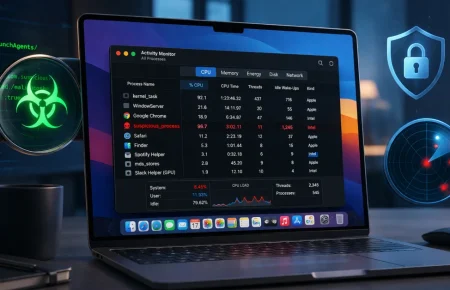
To check for malware using your Mac’s built-in tools, press Command + Space to open Spotlight, type “Activity Monitor,” and hit Return. Click on the CPU tab and sort the list by the “% CPU” column to see which programs are consuming the most processing power. Look for processes with unfamiliar, randomly generated names, or high-resource applications that do not feature standard Mac icons. If you spot a suspicious process, double-click it, select “Sample” to view its underlying text, or click the “Quit” (X) button to forcefully stop it from running.
Common Signs and Symptoms of a macOS Infection
While Activity Monitor is an excellent built-in diagnostic tool for macOS, modern malware is specifically designed to hide its core processes from system utilities. High CPU usage is just one potential indicator. If your MacBook is overheating, draining its battery unusually fast, or acting sluggish, you need to look out for the 10 Hidden Symptoms of Malware on Your Laptop to catch stealthy infections.
Before you attempt to check malware activity monitor mac, you need to observe how your computer is physically behaving.
Macs have a long-standing, albeit slightly exaggerated, reputation for being immune to viruses. While Apple’s underlying Unix-based architecture and built-in security features (like Gatekeeper, XProtect, and SIP) provide robust defenses, they are not impenetrable. Cybercriminals continuously evolve their tactics, creating sophisticated payloads designed specifically to bypass macOS security. Before diving into the technical depths of the Activity Monitor, you must be able to recognize the physical and digital symptoms of a compromised machine.
Malware operates in the background, consuming resources to execute its malicious code. Because it is doing unauthorized work, your computer will naturally exhibit signs of stress. Here is what you need to look out for:
- Severe and Unexplained Sluggishness: Your Mac takes an unusually long time to boot up, applications bounce in the dock indefinitely before opening, and typing letters results in a noticeable delay on the screen.
- Aggressive Fan Noise and Overheating: If you are simply reading a text document or browsing a lightweight website, your cooling fans should not be running at maximum RPM. Constant, loud fan noise indicates that the processor is being maxed out by an unseen process.
- Catastrophic Battery Drain: A MacBook Pro that usually lasts for eight to ten hours suddenly dies in two hours. Malware, particularly cryptocurrency miners, forces your hardware to work at peak capacity constantly, which devours battery life.
- Browser Hijacking and Unwanted Pop-ups: Your default search engine in Safari or Chrome changes automatically to an unknown provider (like SearchMarquis or Bing, surprisingly, which is often used as a redirect vehicle). You experience constant, intrusive pop-up advertisements even when you are not actively browsing the web.
- Mysterious New Applications: You notice strange icons in your Applications folder or Menu Bar that you do not remember installing. Examples include fake system optimizers, unverified uninstaller tools, or generic PDF readers.
- Frequent Application Crashes: Legitimate applications, or even the macOS Finder itself, begin to freeze, crash, and display “Application Not Responding” errors frequently. This happens because malware is injecting code into legitimate processes or hogging the memory required for stable operation.
How Your Mac Gets Compromised
Understanding how malicious software ends up on your system is crucial for preventing future infections. Cybercriminals rarely “hack” your computer in the cinematic sense of typing furiously on a terminal to break your firewalls. Instead, they rely on social engineering and deceptive packaging. They trick you into installing the payload yourself.
When auditing your Mac’s Activity Monitor, pay special attention to unauthorized processes accessing your microphone. Spyware isn’t just listening to your secrets; it is harvesting high-quality audio samples of your voice. Hackers use these recordings to train AI models and create terrifying clones to scam your friends and family. Learn how these deepfakes operate in Is That Really Them? How to Detect Deepfake Audio Scams (2026).
Because of the seamless integration within the Apple ecosystem, a malware infection on your MacBook Pro can quickly put your other synced devices at risk. Hackers who compromise your Mac often try to access your shared iCloud data or intercept two-factor authentication codes sent to your phone. Protect your entire Apple environment by checking for the Signs Your iPhone is Hacked | 2026 Update.
When reviewing your Activity Monitor, pay extreme attention to any unrecognized background processes that might be quietly accessing your MacBook’s microphone. Cybercriminals increasingly deploy stealthy spyware not just to steal passwords, but to secretly record your daily conversations. These harvested audio samples are then used to clone your voice using artificial intelligence for devastating social engineering attacks against your family or employer. Discover how to defend against this next-generation threat in How to AI Voice Scam Detection | Deepfake Audio.
Trojan Horses and Bundled Software
The most common vector for macOS infections is bundled software. You might search for a free version of a premium application, a media converter, or a video game emulator. You find a website offering a free download and grab the .dmg (Disk Image) or .pkg (Package) file. When you run the installer, the primary application might actually install and function as promised. However, hidden deep within the installer’s terms of service—or buried in an “Advanced Installation” menu that users rarely check—are additional, unwanted payloads. By clicking “Next” rapidly, you inadvertently grant permission to install adware, browser hijackers, and potentially worse threats.
Fake System Updates and Flash Player Warnings
Another classic and highly effective tactic is the fake update prompt. While browsing the web, you might suddenly be redirected to a webpage that locks your browser and displays a high-resolution, incredibly convincing Apple security warning. It will claim your Mac is severely infected or that your software is dangerously out of date. Alternatively, it might claim you need to update an outdated media player to view a video. Clicking the provided link downloads a malicious installer. Apple will never warn you about system infections through a web browser pop-up. All legitimate macOS updates occur exclusively through the System Settings app.
Malicious Email Attachments and Phishing
Targeted attacks often utilize email phishing. You might receive an email that appears to be from a legitimate service—a shipping company with a tracking invoice, a bank alerting you to fraudulent activity, or a colleague sharing a document. The attached file might look like a standard PDF or Word document, but it is actually an executable script or a macro-enabled document designed to pull down malware from a remote command-and-control server the moment you open it.
Drive-by Downloads and Malvertising
In some cases, you do not even need to click a download button. Malvertising involves criminals purchasing ad space on legitimate, high-traffic websites. They then inject malicious code into the advertisements. If you visit a compromised site while using an outdated browser or operating system, the malicious ad can quietly exploit vulnerabilities in your software to execute a “drive-by download,” silently dropping a payload into your system background without any user interaction.
Using Activity Monitor to Hunt Threats
Now that you understand the symptoms and vectors, it is time to perform the actual investigation. Activity Monitor is the macOS equivalent of the Windows Task Manager. It is a powerful, built-in diagnostic utility that provides a real-time, granular view of every single process, application, and background task currently running on your machine.
To launch the tool, you can navigate to your Applications folder, open the Utilities folder, and double-click Activity Monitor. Alternatively, and much faster, press Command + Space to open Spotlight search, type “Activity Monitor,” and press Return. When the window opens, you will be greeted by a dense spreadsheet of data. It can look intimidating, but we will break down exactly how to read it.
How did malicious software end up running in your MacBook’s background in the first place? In many cases, it starts with a highly targeted phishing email sent to an address that was exposed in a previous corporate data breach. If you want to stop malware at the source and see if cybercriminals are actively targeting your inbox, learn How to Check if Your Email Was Leaked.
Activity Monitor is divided into five main tabs: CPU, Memory, Energy, Disk, and Network. Each tab offers a different perspective on how your hardware is being utilized, and each is useful for hunting different types of malware.
Finding the Heavy Lifters
The CPU (Central Processing Unit) tab is your primary hunting ground. The CPU is the brain of your Mac, and any software doing heavy lifting must pass through it. Cryptominers, aggressive adware, and poorly coded spyware will inevitably show up here.
When you check malware activity monitor mac, the CPU tab is always the best place to start your investigation.
When you click the CPU tab, look at the column headers. Click on the “% CPU” header until the small arrow next to it points downward. This action sorts the entire list of processes in descending order, placing the applications consuming the most processing power at the very top of the list.
What to look for:
- Consistent High Usage: It is normal for an application like Google Chrome or Adobe Premiere to spike to 50% or even 100% CPU usage momentarily when opening a heavy webpage or rendering a video. However, if you see an unrecognizable process constantly hovering at 80%, 90%, or higher while your computer is supposedly idle, you have found a major red flag.
- Unusual Process Names: Legitimate software usually has clear, identifiable names (e.g., Safari, Spotify, WindowServer). Malware often uses randomized alphanumeric strings (e.g., a7x9bgq) to avoid detection.
- Deceptive Mimicry: Clever malware authors will name their processes to look like legitimate Apple system files. You might see something called systemuiserver instead of the legitimate SystemUIServer. They rely on you misreading the name and scrolling past it. Look closely for slight misspellings or odd capitalization.
Spotting Silent Data Hoarders
The Memory (RAM) tab shows how much temporary workspace each application is utilizing. Some malware is designed to operate quietly, sipping CPU power so it doesn’t trigger the fans, but hoarding massive amounts of memory to log keystrokes or encrypt files in the background (as in the case of ransomware).
Another crucial step when you check malware activity monitor mac is reviewing your system’s RAM usage.
Click the Memory tab and sort by the “Memory” column. Look for processes that are consuming gigabytes of RAM without any logical reason. For instance, a simple background helper application should not require 4GB of memory. If an unknown process is aggressively consuming RAM, it is worth investigating.
Identifying Battery Killers
If your primary symptom is rapid battery drain on your MacBook Pro, the Energy tab will point you directly to the culprit. This tab measures the “Energy Impact” of every process over time. Sort by “12 hr Power” or “Energy Impact”. If an application you do not recognize, or a background process that should be dormant, has a massive energy impact score, it means it is constantly waking up your processor to execute hidden tasks.
Catching Spyware Phoning Home
This tab is incredibly valuable for identifying spyware, keyloggers, and RATs. These types of malware are useless to a hacker unless they can transmit the stolen data (your passwords, files, or webcam feeds) back to their command-and-control server.
Click the Network tab and look at the “Sent Bytes” and “Rcvd Bytes” columns. If you are not actively downloading large files or streaming video, an unknown process sending massive amounts of data out to the internet is a critical warning sign. A process named something innocuous like UpdateHelper that has secretly uploaded 5GB of data is highly suspicious.
How to Inspect and Kill a Suspicious Process
Let’s say you have sorted the CPU tab and found a process named MacOptimizerProHelper using 95% of your CPU. You did not install this, and you want it gone. You cannot just guess; you need to investigate.
Learning how to check malware activity monitor mac is only half the battle; you must also know how to terminate the threat.
Inspect the Process
Double-click the suspicious process name in the list. A new window will pop up providing detailed statistics about that specific process. Look at the tab labeled “Open Files and Ports.”
This tab displays a massive wall of text detailing exactly which files and network connections the process is accessing on your hard drive. Scroll through this text and look for file paths. Legitimate Apple system processes usually operate out of the /System/Library/ directory. If you see the suspicious process operating out of hidden user directories like ~/Library/Application Support/ or an invisible folder like ~/.Trash/, this is a classic hallmark of malware hiding from plain sight.
Sample the Process
In that same pop-up window, click the button that says “Sample.” Activity Monitor will take a three-second snapshot of the process’s code execution. While the resulting text is highly technical and meant for developers, you can often scan the text for plain-english clues. Look for web URLs, IP addresses, or names of known adware companies buried in the code. If you see URLs pointing to strange, overseas domains, your suspicions are confirmed.
Force Quit the Threat
If you are confident the process is malicious, it is time to stop it. Select the process in the main Activity Monitor window and click the “X” button located in the top menu bar (it looks like a stop sign with an X in the middle). You will be presented with a prompt asking if you want to Quit or Force Quit. Always choose Force Quit. This bypasses the application’s normal shutdown sequence and instantly terminates it at the kernel level.
Crucial Note: Force quitting a process does not delete the malware from your hard drive. It only stops it from running in that exact moment. If the malware has established persistence (which it almost certainly has), it will simply start back up the next time you turn on your computer.
Understanding Normal macOS Processes
One of the biggest mistakes users make when trying to secure their Macs is panic-quitting critical system processes. Apple’s operating system relies on hundreds of background daemons to function properly. If you do not recognize a name, do not immediately assume it is a virus. Here are a few vital system processes that you should never force quit:
- kernel_task: This is the absolute core of the macOS operating system. It manages your CPU temperature, allocates memory, and handles hardware requests. If your Mac gets hot, kernel_task will purposefully consume CPU resources to prevent other apps from running, forcing the system to cool down. High CPU usage here is usually a symptom of overheating, not malware.
- mds and mds_stores: These processes belong to Spotlight, the Mac search feature. Whenever you add new files to your hard drive, these processes run in the background to index the data so you can search for it later. They can temporarily consume high CPU after a large file transfer or a system update.
- WindowServer: This process is responsible for drawing everything you see on your screen. Every window, shadow, transparency effect, and animation is rendered by WindowServer. If you have dozens of windows open across multiple high-resolution monitors, this process will naturally use a significant amount of resources.
- launchd: This is the parent of all processes. It is the very first thing that starts when you boot your Mac, and it is responsible for launching every other system process.
If you see a process you do not recognize, the best course of action is to simply right-click it, select “Search with Google” (or perform a manual web search). A quick search of the exact process name will immediately tell you if it is a standard Apple daemon or known malware.
How Malware Achieves Persistence
As mentioned earlier, killing a process in Activity Monitor is only a temporary fix. Professional malware is designed to survive reboots. It achieves this by creating “persistence mechanisms.” If you want to permanently eradicate the threat, you must dig into your system libraries.
Malware typically hides its auto-start instructions in specific macOS folders called LaunchAgents and LaunchDaemons. These folders contain .plist (Property List) files that tell the operating system to automatically run specific scripts the moment you log in.
To check these locations for malicious persistence files:
- Open the Finder app.
- Click on Go in the top menu bar, hold down the Option key to reveal the hidden Library folder, and click it.
- Look for a folder named LaunchAgents. Open it.
- Examine the .plist files inside. Legitimate software (like Adobe Creative Cloud or Google Chrome updater) will have clear names like com.google.keystone.agent.plist.
- If you see files with randomized names (e.g., com.a8x9j.updater.plist) or names mimicking the malicious process you killed earlier, drag those files to the Trash.
You should repeat this process for the system-wide LaunchDaemons. In Finder, click Go, select Go to Folder…, and type /Library/LaunchDaemons/. Press return and look for similar suspicious .plist files.
Another increasingly common tactic for adware and browser hijackers is the use of Configuration Profiles. Apple designed these profiles so IT administrators could easily manage large fleets of corporate Macs, locking down settings and forcing specific homepage URLs. Malware abuses this feature to lock your browser settings so you cannot change your default search engine back to Google.
To check for malicious profiles, open your System Settings and search for “Profiles.” If you do not see a Profiles icon, you do not have any installed (which is normal for personal computers). If you do see it, open it. If there is a profile installed that you or your employer did not put there, select it and click the minus (-) button to permanently remove it.
Frequently Asked Questions
Can Macs actually get viruses?
Yes, absolutely. While traditional self-replicating “viruses” are rare on macOS, other forms of malicious software—such as adware, spyware, ransomware, and trojans—are incredibly common. Cybercriminals actively target Mac users because they often operate under a false sense of absolute security.
Is Activity Monitor enough to clean my Mac?
No. Activity Monitor is a diagnostic tool, not an antivirus program. It is excellent for identifying an active threat and temporarily stopping it from running, but it cannot automatically locate hidden payload files, delete malicious LaunchAgents, or repair browser hijackers. It is the first step in an investigation, not the final cure.
Should I download a third-party antivirus for my Mac?
For most users, relying on Apple’s built-in, invisible security tools (XProtect and the Malware Removal Tool) combined with safe browsing habits is sufficient. However, if you frequently download software from unverified sources, use torrents, or have previously dealt with malware, installing a reputable, dedicated anti-malware scanner designed specifically for macOS is highly recommended to catch threats that bypass Apple’s native defenses.
What does “kernel_task” do and why is it using so much CPU?
The kernel_task process manages your Mac’s core functions, including temperature control. When your system detects that the internal temperature is rising too high, kernel_task artificially consumes CPU cycles. This effectively blocks other applications from using the processor, forcing the hardware to cool down. High kernel_task usage is a thermal management feature, not a virus.
How do I know if the camera light means I am hacked?
Always assume a benign cause first. Check your Control Center (the green dot) to see which app is using the camera. Often, it is a browser extension or a video conferencing app running in the background. If the system reports that an unrecognized application is using the camera, or if you cannot find any logical reason for the light to be on, you should immediately disconnect from the internet and scan for Remote Access Trojans (RATs).
Many users ask how to properly check malware activity monitor mac without deleting essential system files.
Can resetting my Mac remove malware?
Yes. If you are dealing with a deeply rooted infection that you cannot manually remove, performing a factory reset (Erase All Content and Settings on modern Macs) will wipe the hard drive completely, destroying the operating system and any malware residing on it. Always ensure you have backed up your important personal files (documents, photos) before doing this, but do not back up applications, as you might accidentally back up the malware itself.
Check Malware Activity Monitor Mac
By now, you should have a solid understanding of how to use your system’s built-in tools to hunt down unauthorized software. To successfully check malware activity monitor mac and secure your system, follow this definitive workflow: First, verify the innocent causes of your symptoms—check your privacy indicators for routine camera usage to rule out basic background software. Second, open your Activity Monitor and systematically review the CPU, Memory, and Network tabs. Sort the data to force the most resource-heavy applications to the top of the list. Third, investigate any suspiciously named processes by checking their open files and network ports. Fourth, use the Force Quit function to immediately halt any confirmed malicious activity.
However, your job does not end there. Remember that forcefully closing an application does not remove it from your hard drive. To ensure your computer remains clean, you must navigate to your hidden Library folders and delete any malicious LaunchAgents or LaunchDaemons that the malware created to survive a system reboot. Finally, check your System Settings for unauthorized Configuration Profiles that might be hijacking your web browsers.
Securing your Mac requires ongoing vigilance and a basic understanding of how your operating system functions beneath the surface. You do not need to be a cybersecurity expert to keep your data safe, but you do need to be proactive. If manual removal feels too complex, or if the symptoms persist after you have cleared the Activity Monitor, do not hesitate to download and run a dedicated, reputable malware scanner to scrub the deepest corners of your file system. Take control of your hardware, trust your instincts when a process looks wrong, and never ignore consistent warning signs.



No Comment! Be the first one.